
Retail insights
The WhirlWind Portal: Web Access Your Team Can Use and You Can Control
Curious what the WhirlWind Portal can do for your team? Read along to see how simple sign-up, admin approval and built-in roles make access easy to manage.
By WhirlWind Software ·
What is the WhirlWind Portal?
Most of our customers know WhirlWind as the desktop software they use to run their store, from point of sale and inventory to accounting. The WhirlWind Portal is the web-based side of WhirlWind. You sign in from a browser instead of the desktop app, and your account is tied to your existing employee record, so it’s still you, with your company’s data.
Getting your team on board is easy
Employees can sign up on their own in a couple of minutes. There’s nothing for an admin to set up ahead of time. Each portal account is linked to one employee in WhirlWind, and new users confirm who they are with their desktop password. That way every account belongs to a real person on your team, and you always know who’s who.
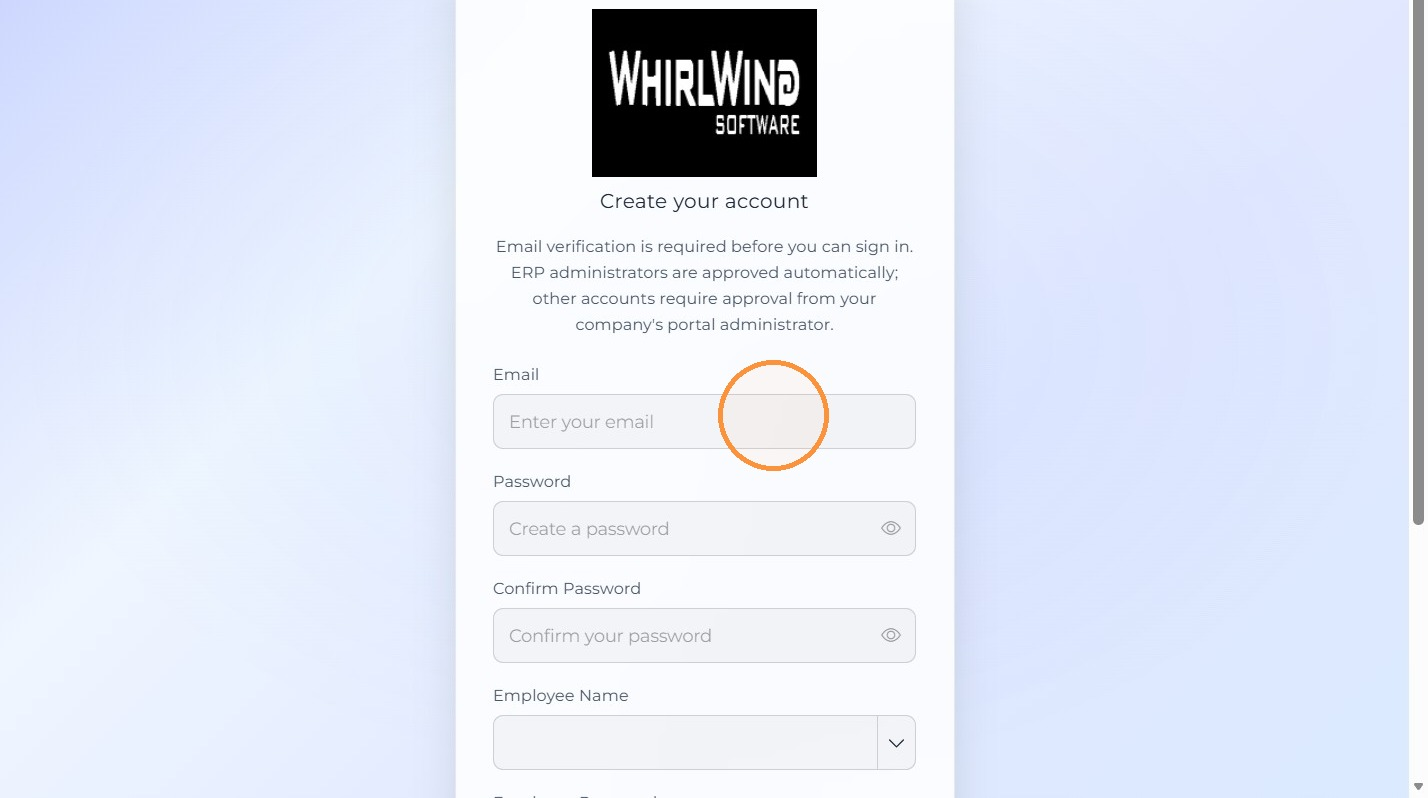
Nobody gets in without your approval
Signing up doesn’t automatically grant access. New accounts wait until a company admin approves them, and every user has to verify their email address too. Admins can see everyone who has signed up in one list, invite people directly by email, and reset or disable an account the moment someone changes jobs or leaves the company.
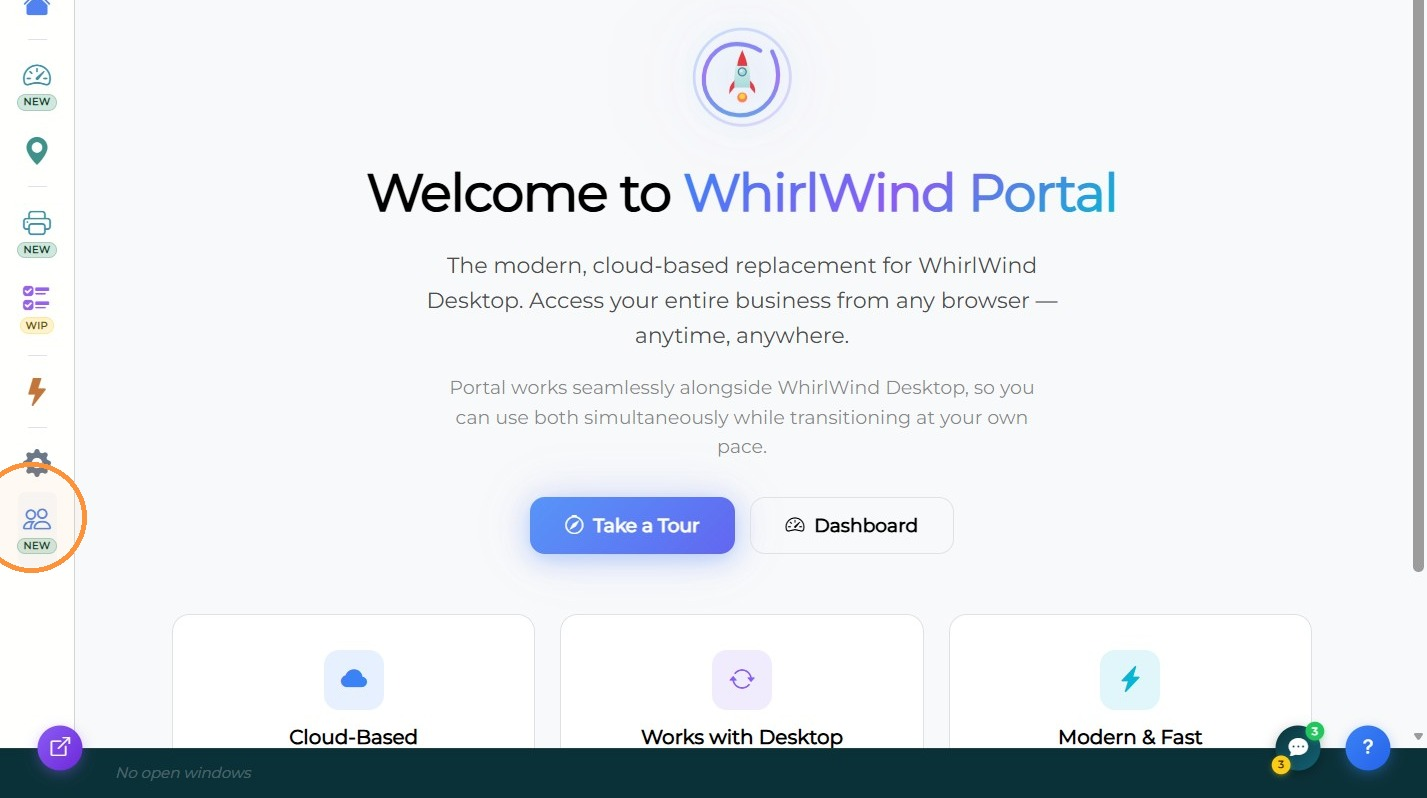
Roles that already fit how a store works
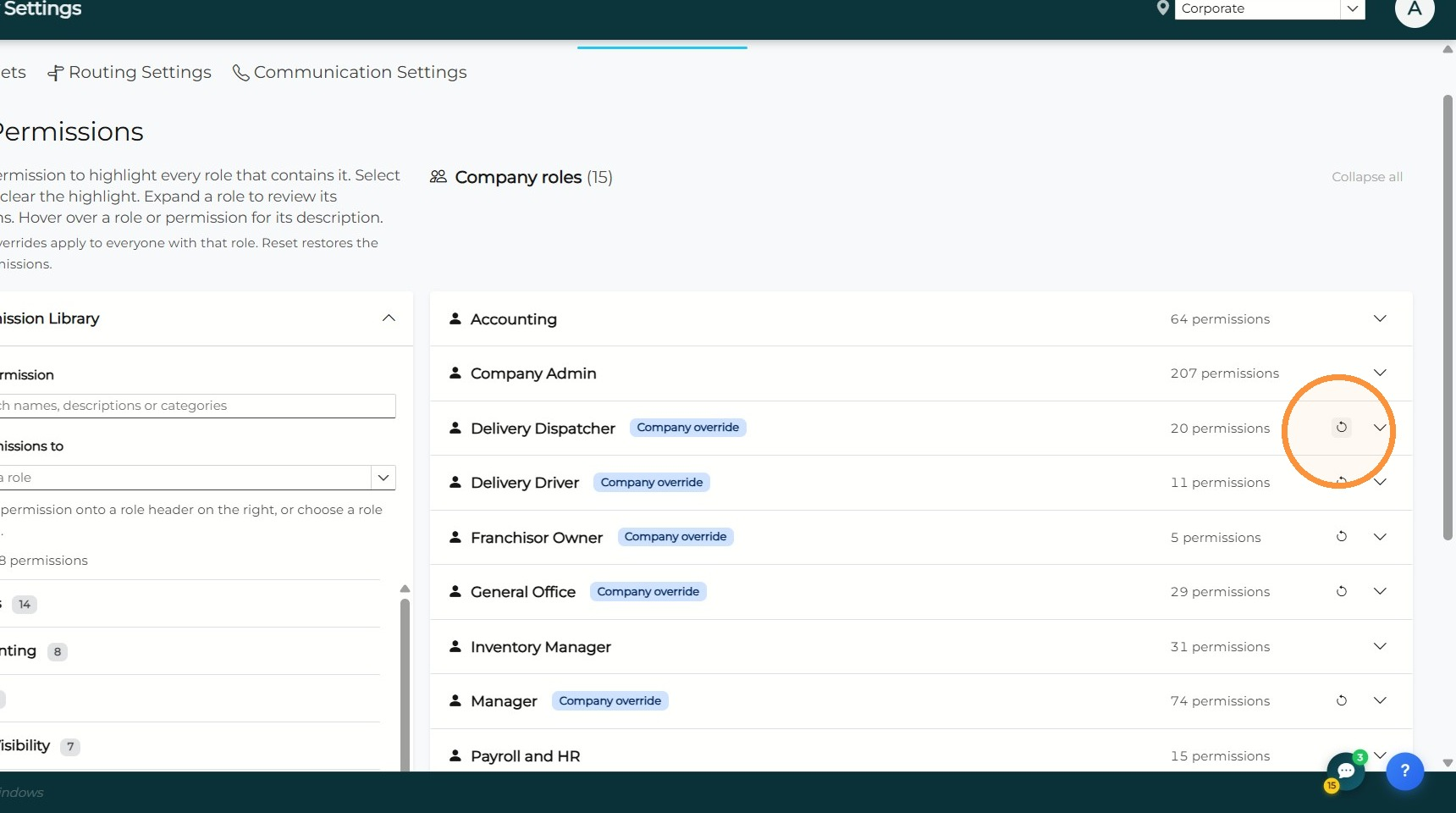
You don’t have to build permissions from scratch. WhirlWind comes with 15 ready-made company roles, each with a recommended set of permissions. Assign people the roles that match their jobs, and give someone more than one role if they wear more than one hat.
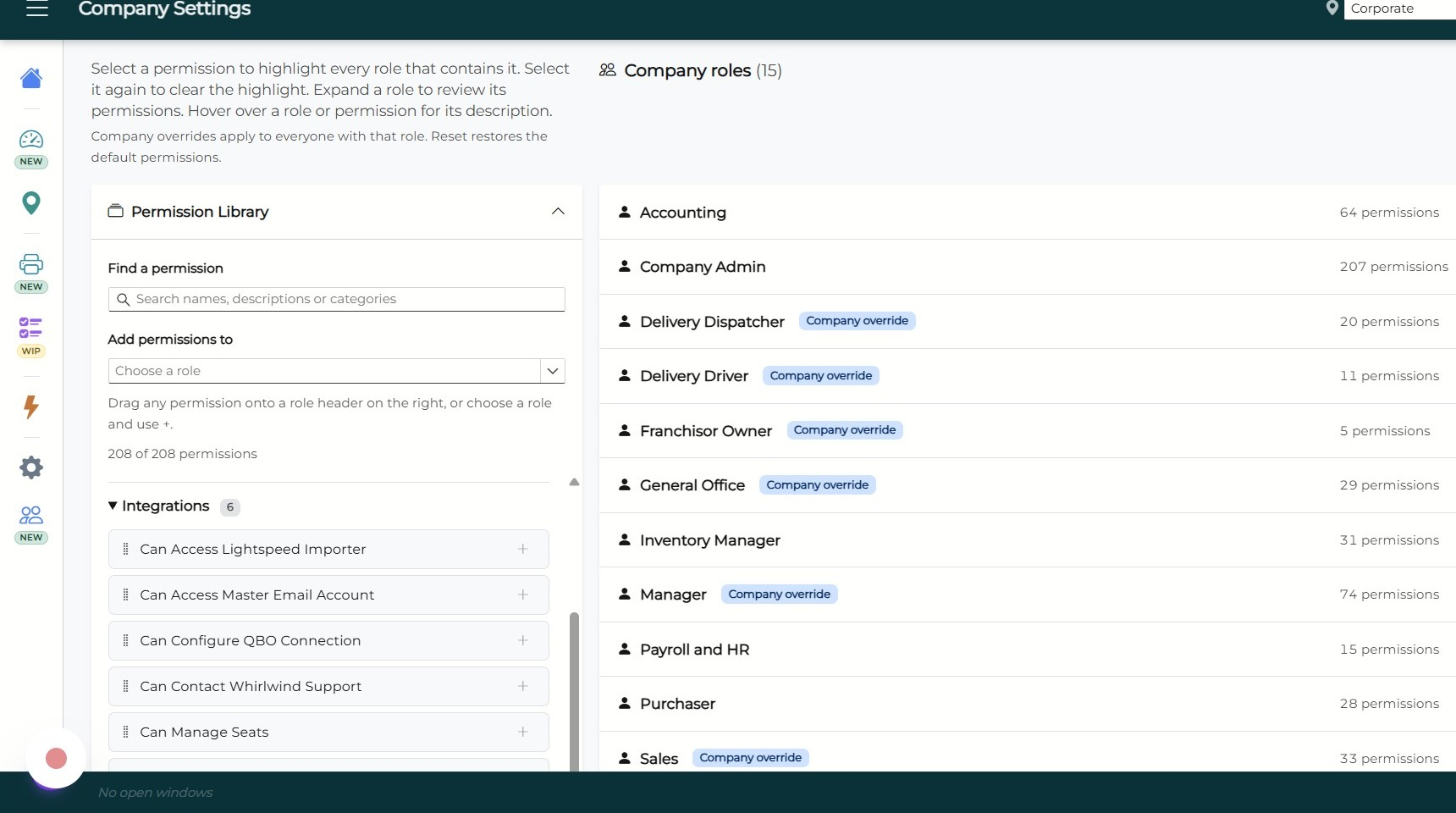
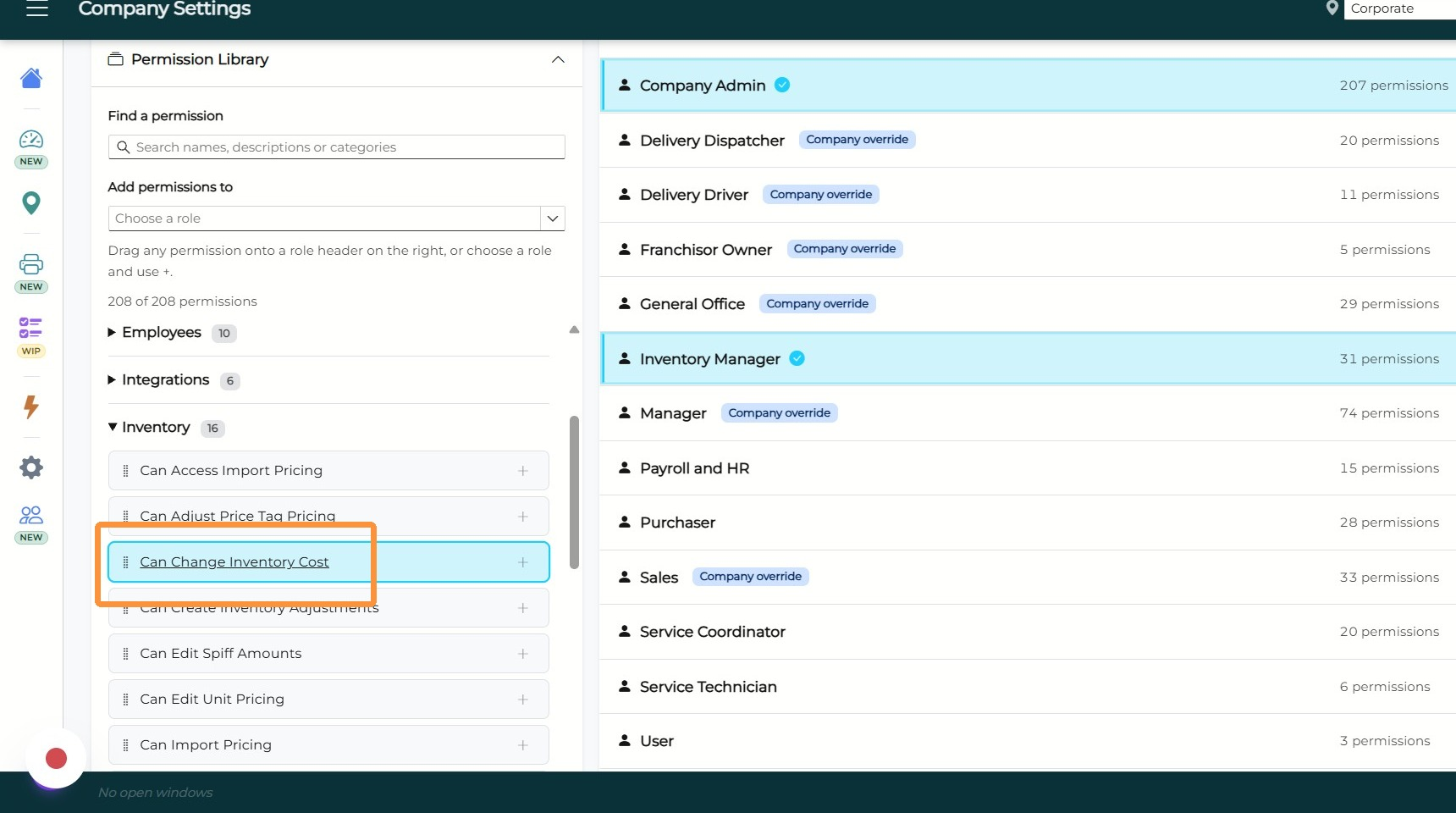
See exactly who can do what
Wondering who on your team can change inventory costs? Click that permission and every role that has it lights up. It’s a quick way to check access without digging through each person’s settings one at a time.
Adjust it to your business, and undo it anytime
If the defaults don’t quite match how you work, add or remove permissions from any role with drag and drop. Customized roles are clearly marked, and you can switch any role back to WhirlWind’s defaults with one click. These settings only affect the portal, so your desktop setup stays exactly as it is.
Ready to get started?
If you’d like help setting up the WhirlWind Portal for your team, contact our support team and we’ll walk you through it.